How to Generate Bulk QR Codes from Excel — Easy Guide
Generating QR codes one by one is genuinely painful. You open a generator, paste a URL, download the image, rename it, and repeat hundreds of times. Businesses constantly need large batches, restaurant table menus, event tickets, product labels, inventory items, and yet almost every available tool forces you to create codes one at a time. A task that should take 60 seconds ends up taking hours.
Instead, you can generate bulk QR codes from Excel. Upload your Excel or CSV file, choose your colour and size, click Generate, and download a ZIP file containing every QR code named exactly as you specified. No copy-pasting, no repetitive work, no developer support required.
📥 Download Free QR Code Excel Template (ZIP) | 🚀 Open the Bulk QR Generator
Table of Contents
Why Creating QR Codes One by One Is a Waste of Time
The Manual Method Nobody Should Be Using
The manual process looks simple: open a generator, paste one URL, download the image, rename the file, and repeat. But even at 30 seconds per QR code, generating 500 product labels takes over four hours. For 2,000 event tickets, it’s an entire workday spent on a task that a spreadsheet and a bulk QR code generator can finish in under two minutes.
Table 1: Comparison Between Manual and Bulk Generation Method
| Task | Manual Method | Bulk QR Generator |
| 100 QR Codes | 30–60 minutes | 1–10 seconds |
| 500 QR Codes | 4–6 hours | 11–15 seconds |
| 1,000 QR Codes | Full workday | 15–20 seconds |
| File naming | Manual | Automatic |
| Custom colors | One by one | Spreadsheet-driven |
| Scalability | Poor | Up to 10,000 per batch |
What Most People Do Instead (And Why It Fails)
Some users try Python scripts, Excel add-ins, or hire a freelancer. All three require setup time, break when the data changes, and still don’t produce a properly named ZIP file ready for a print team. The correct fix is a bulk generator that reads your spreadsheet directly, no code, no workarounds.
What You Need Before You Start
The Excel or CSV File Format Explained
The generator accepts:
Table 2: Types of Excel that You Can Use in Our Tool for Bulk Code Generation
| File Type | Extension |
| Microsoft Excel | .xlsx |
| Legacy Excel | .xls |
| CSV | .csv |
| Google Sheets export | .csv |
| Plain text | .txt |
If your data is in Google Sheets, export it in under 10 seconds: File → Download → Comma-separated values (.csv), then upload the CSV directly. The output is identical to uploading an Excel file.
The file size limit is 10MB, which comfortably handles spreadsheets with tens of thousands of rows. You can generate without creating an account; a free account adds generation history and the ability to re-download past ZIP files.
The Simple Column Structure (With Example)
One column is required. Three are optional:
Table 3: Required Spreadsheet Columns
| Column | Required? | What it does |
| data | ✅ Yes | The URL, text, or value encoded in each QR code |
| filename | Optional | Name of the exported image file (no extension needed) |
| color | Optional | Hex color per row — must include # prefix (e.g. #0057FF) |
| size | Optional | Output size in pixels: 200, 300, 400, or 500 |
The data column accepts any content: website URLs, plain text, email addresses (mailto:), phone numbers (tel:), UPI payment strings, WiFi credentials, vCard contact data, GPS coordinates, and product IDs. You can mix different types across rows in the same file.
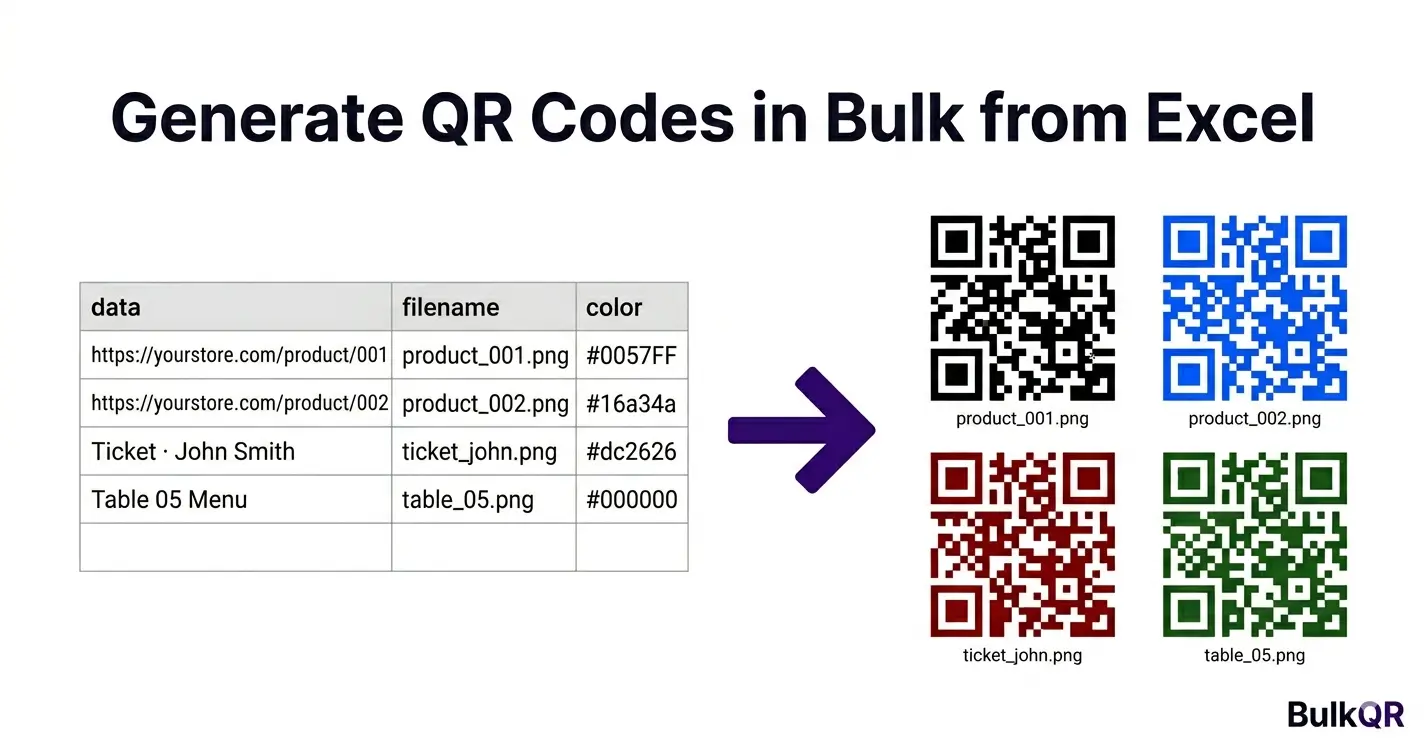
Table 4: Example Spreadsheet for Your Reference:
| data | filename | color | size |
| https://yourstore.com/product/001 | product_001 | #0057FF | 300 |
| https://yourstore.com/product/002 | product_002 | #00B050 | 300 |
| Ticket · John Smith · Row C Seat 12 | ticket_john | #CC0000 | 400 |
| Table 05 Menu | table_05 | #000000 | 300 |
Each row becomes a QR code, named and colored exactly as specified, packaged into a single ZIP file.
Download the Free Template
📥 Download Free Excel Template ZIP(.xlsx) — includes a sample data tab and instructions tab
How to Generate 1,000 QR Codes from Excel: Step by Step
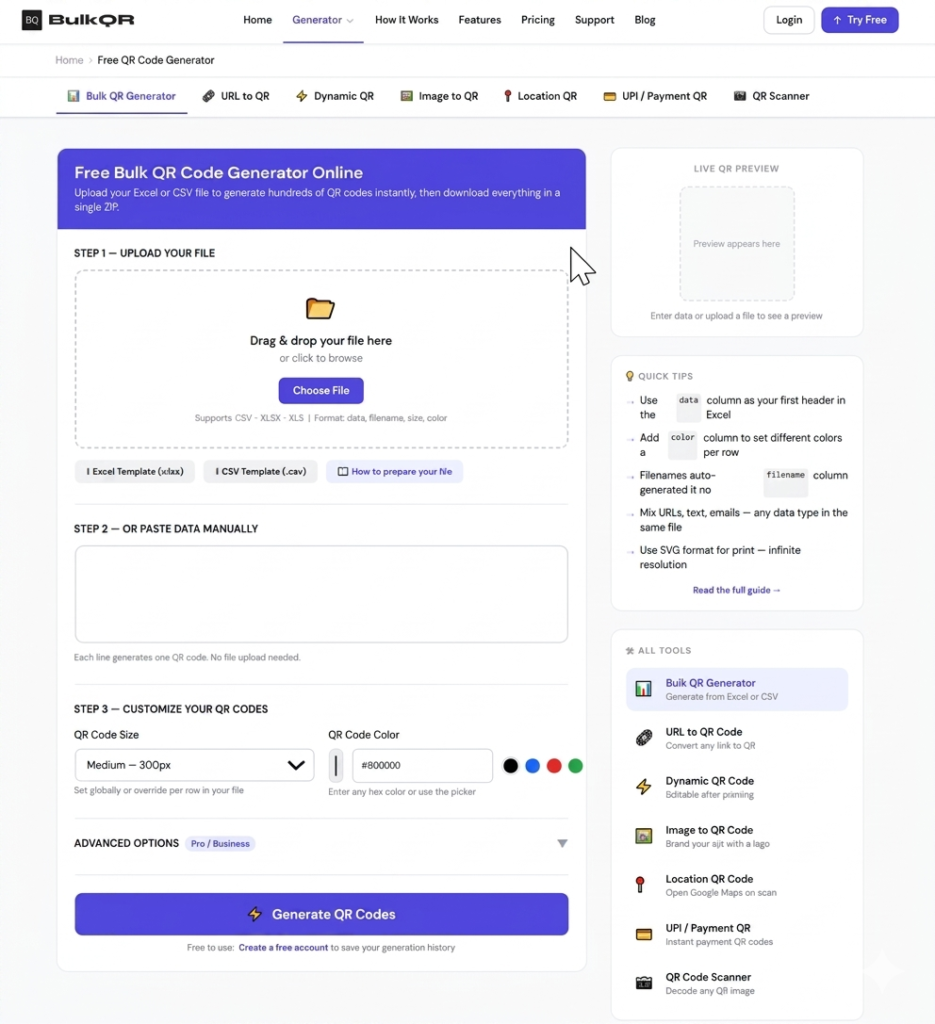
Figure 1: Upload your Excel or CSV file to start generating QR codes in bulk.
Step 1: Prepare Your Excel File
Create a column called data in row 1. Add your URLs or text below it, one entry per row. Optionally add columns for filename, color, and size for per-row control.
Before uploading, confirm:
- ✅ Row 1 contains headers, not data
- ✅ No blank rows in the middle of your data
- ✅ All URLs start with https:// or http://
- ✅ File saved as .xlsx, .xls, or .csv
- ✅ Data is on Sheet 1 — the generator reads the first sheet only
Format the data column as Text in Excel (right-click → Format Cells → Text) before entering or pasting data. This prevents Excel from auto-converting URLs into hyperlinks or reformatting values that resemble dates or numbers.
Step 2: Open the Bulk QR Code Generator
Go to Bulk QR Code Generator in any browser. No installation, no account required to start.
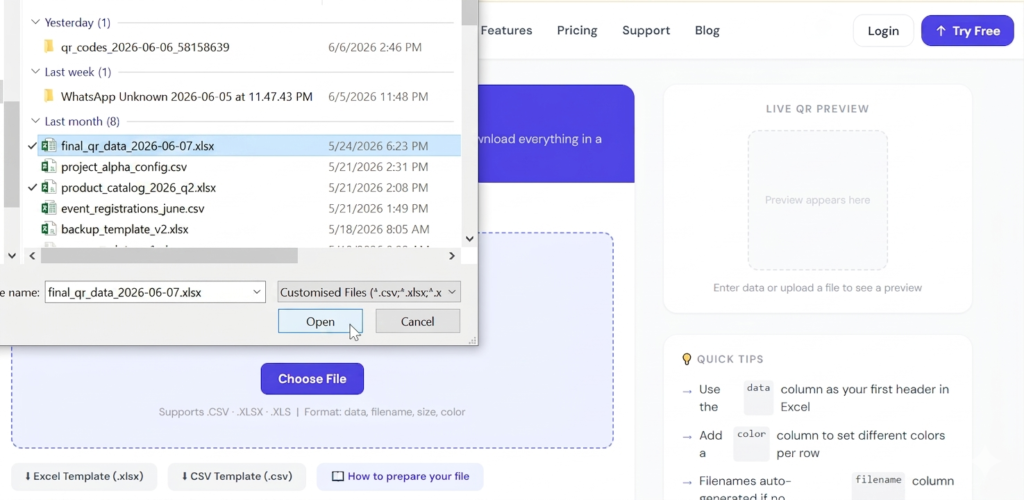
Figure 2: Select the Spreadsheet Containing the Data for Your QR Codes.
Step 3: Upload Your File
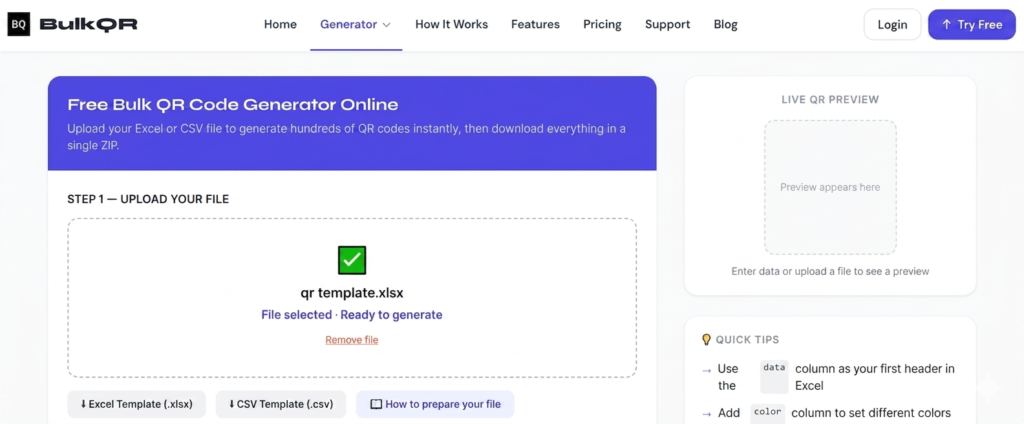
Figure 3: Excel file Uploaded and Ready for Bulk QR Code Generation
Click Upload and select your file, or drag and drop it into the upload zone. The generator immediately reads and validates your data and displays your file name. This lets you verify the file before proceeding.
If anything is wrong, missing data column, blank rows, or unsupported characters, the tool flags them before you generate.
Step 4: Customize Color and Size (Optional)
Set global defaults for the entire batch:
- Color — pick any hex color from the color picker, or type a code directly (e.g. #0057FF for blue, #16a34a for green, #dc2626 for red)
- Size — 200px (digital/screen use), 300px (standard), 400px, or 500px (print and packaging)
- Format — PNG is available on all plans; SVG (scalable, ideal for print) is available on Pro and Business plans
- Error correction — controls how much physical damage a code can sustain and still scan; Level L (7%), M (15%), Q (25%), H (30%). Pro feature — free plan defaults to Level M
Per-row color and size values in your spreadsheet automatically override these global settings.
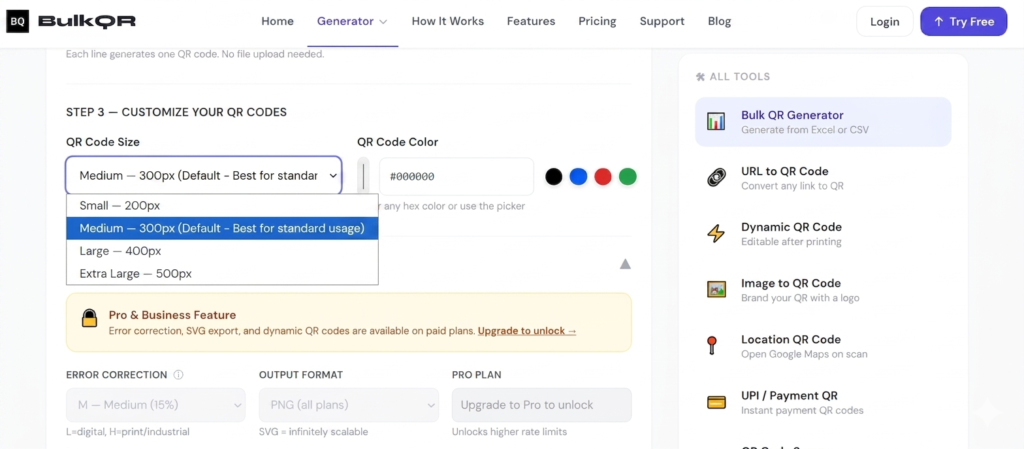
Figure 4: Choose QR Code Size and Color Before Generating the Batch.
Step 5: Click Generate
Hit Generate. The generator processes your file row by row and packages every QR code into a single ZIP.
Table 5: How Many Codes Can be Generated in a Single Batch With Respect to Time
| Batch Size | Approximate Time |
| 100 codes | 1–2 seconds |
| 500 codes | 2–5 seconds |
| 1,000 codes | 3–8 seconds |
| 5,000 codes | Under 30 seconds |
| 10,000 codes | Under 60 seconds |
All generated codes comply with the ISO/IEC 18004 standard for universal scan compatibility across every smartphone camera, tablet, and barcode scanner.
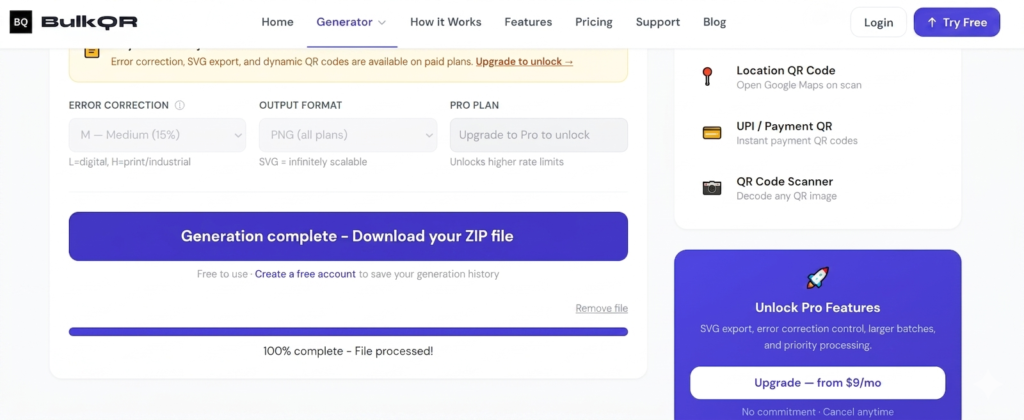
Figure 5: The Generator Processes all QR Codes Automatically.
Step 6: Download Your ZIP File
Click Download ZIP. The archive contains each QR code as a separate image, named by your filename column or auto-numbered if you skipped that column. A README.txt with basic batch information is included.
The ZIP is available for 1 hour after generation and is then automatically deleted from the server. Download it promptly and save it to local storage or your cloud drive.
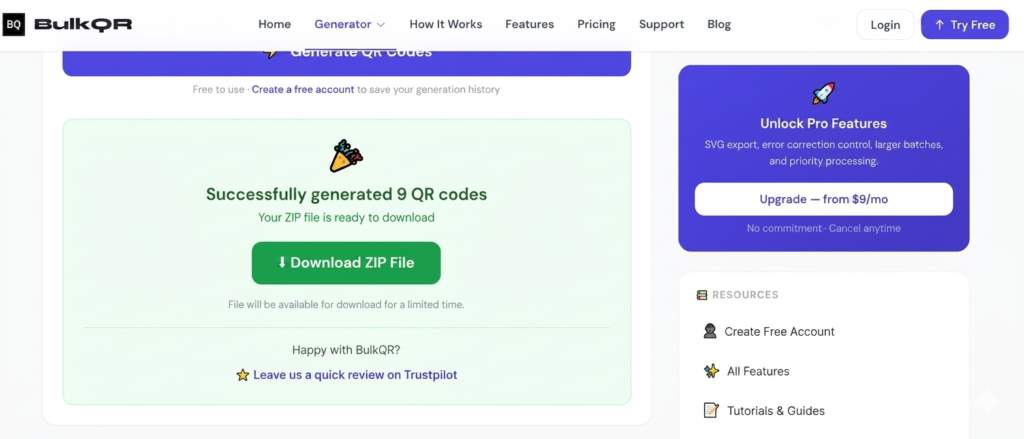
Figure 6: Download all Generated QR Codes in a Single ZIP File.
You are now able to view the generated codes in the image below
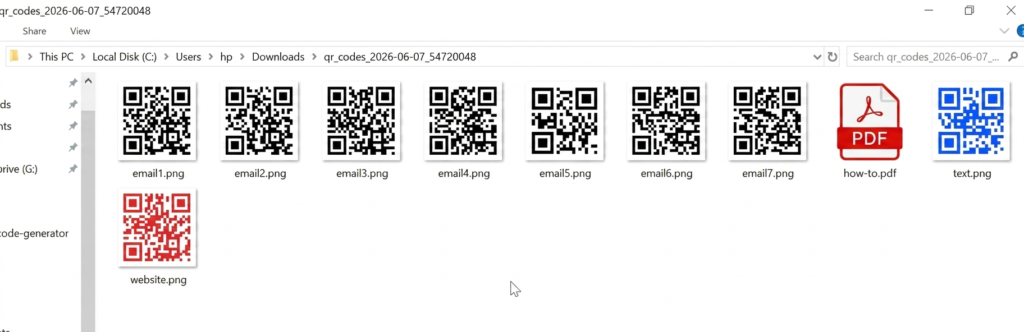
Figure 7: Extract the ZIP File to Access Individual QR Code Images.
Real Use Cases: Who Uses Bulk QR Code Generation
Event Organizers and Ticket Management
Event managers with 500 to 10,000 attendees need a unique QR code per ticket, each linking to that attendee’s registration record or check-in URL. The entire batch generates in under a minute directly from the registration export CSV. At the door, staff scans with a standard smartphone camera, no dedicated hardware, no printed lists, no entrance bottlenecks.
Common data types: Unique ticket IDs, attendee check-in URLs, digital passes
Restaurants and Digital Menus
One QR code per table, linking to the menu or a table-specific ordering page. A restaurant with 40 tables generates all 40 uniquely named codes in a single upload. With dynamic QR codes, the menu destination updates automatically when the menu changes, without reprinting anything.
Common data types: Table-specific menu URLs, ordering system links, feedback forms
E-commerce and Product Labels
One QR code per SKU, linking to the product page, warranty registration, user manual, or review form. For stores with hundreds or thousands of products, bulk generation is the only practical option.
Common data types: Product page URLs, warranty registration forms, instruction manual PDFs
Warehouses and Inventory Tracking
QR codes on bins, shelves, and pallets link directly to inventory management system records. Scanning a code pulls up stock levels, reorder history, or item details instantly, no manual lookup required.
Common data types: Inventory system URLs, asset IDs, location identifiers
Pro Tips for Better QR Codes
- Use SVG for anything you print. PNG is fine for screens. SVG scales to any size without quality loss. Use it for packaging, banners, labels, and stickers. Available on the Pro plan.
- Set error correction to Q or H for printed codes. This lets the code scan even if part of it is scratched, smudged, or covered by a logo. Essential for outdoor labels and physical tickets.
- Keep URLs short. Longer URLs create denser codes that are harder to scan at small sizes. Use a URL shortener or dynamic QR code if your links are long.
- Test on both Android and iPhone before printing. A code that looks fine on screen can behave differently on certain devices or camera apps. Scan a sample from every batch before committing to a print run.
- Use high contrast colors. Dark foreground on a white or light background always scans best. Very light colors, pale yellow (#FFFF99), light gray (#CCCCCC), or any pastel, on white paper, will not scan reliably.
- Don’t crop the quiet zone. QR codes need a clear white border at least 4 module widths wide on all sides. Cropping it in a design tool breaks scanning.
- Name your files systematically. Use the filename column to match your internal naming convention, SKU numbers, event IDs, and table numbers, so files drop directly into your design workflow without sorting.
Common Mistakes to Avoid
- Wrong column header name. The generator looks for a column named exactly “data” (lowercase). If yours is labelled URL, Link, or Content, rename it before uploading. Accepted aliases are url, content, and value, but data is the most reliable.
- Blank rows in the middle of your data. The generator skips blank rows, resulting in unexpected gaps in the file numbering. In Excel, remove them via Find & Select → Go To Special → Blanks → Delete rows.
- Color values are missing the # prefix. Entering 0057FF instead of #0057FF causes the generator to default to black. Format the color column as Text in Excel to prevent auto-formatting from stripping the #.
- The size column contains “px” or other text. The size column accepts only a plain number, 300, not 300px. Any non-numeric content falls back to the default size.
- Excel auto-formatting corrupts data. Format your data column as Text before entering or pasting to prevent URLs from becoming hyperlinks and numeric product codes from losing leading zeros.
- Downloading before regenerating. If you change color, size, or format after the first generation, click Generate again before downloading. The ZIP is not updated automatically.
- Using static codes when the destination might change. If the URL could change, a seasonal campaign, a menu update, or a relocated page, use a dynamic QR code. Reprinting a batch because one URL changed is expensive.
- Data on the wrong sheet. The generator reads only the first sheet of an Excel workbook. If your data is on Sheet 2 or Sheet 3, move it to Sheet 1 before uploading.
- Exceeding your plan’s batch limit silently. If your file has 800 rows but you’re on the free plan (500 codes per batch), the generator processes only the first 500 rows with no error message. Check your row count against your plan limit before generating.
Frequently Asked Questions
How many QR codes can I generate for free?
The free plan supports up to 500 QR codes per batch with a daily limit of 10 batches, enough for a restaurant with 40 tables, a product launch with 300 SKUs, or an event with 400 attendees. Pro ($9/month) supports up to 5,000 codes per batch with unlimited daily generations. Business ($25/month) supports up to 10,000 codes per batch. All plans include ZIP download, color customization, and browser-based generation with no software to install.
Can I use Google Sheets instead of Excel?
Yes. Export your sheet as CSV: File → Download → Comma-separated values (.csv), then upload the CSV file directly. The output is identical to uploading an Excel file, same columns, same ZIP, same results.
What if my QR codes are not scanning?
Check these in order:
- Contrast: foreground color too close to the background? Switch to a dark color on a white background.
- Size: printed smaller than 2 cm × 2 cm? Increase output size and reprint. Use at least 300px output and 2.5 cm minimum print size.
- Destination URL returning a 404 or error? Fix the link in your spreadsheet and regenerate.
- Quiet zone border cropped in your design tool? Add white space back around the code (a minimum of 4 module widths on all sides).
- Format stretched a low-resolution PNG? Use SVG for all print applications.
Do the QR codes expire?
Static QR codes never expire. The data is encoded directly into the code pattern. As long as the destination URL remains live, the code will work indefinitely, even if you delete your account.
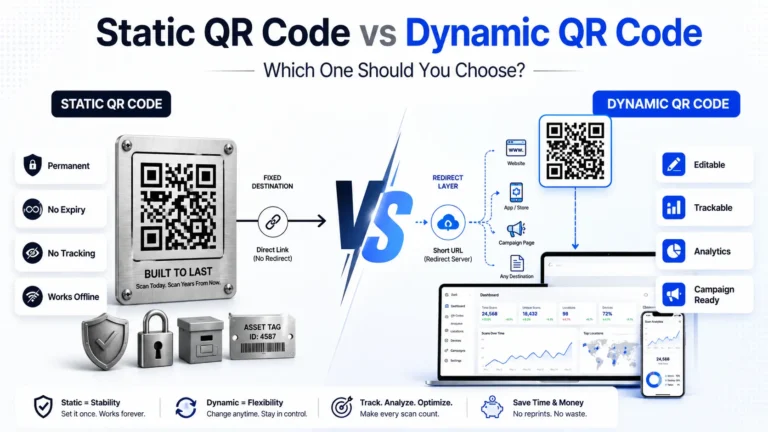
Dynamic QR codes use a redirect managed through the platform. If the redirect is deleted or your account lapses, scanning stops working. Use static codes for permanent applications, such as product packaging. Use dynamic codes when you need to update the destination without reprinting.
Can I set different colors for each QR code?
Yes. Add a color column to your spreadsheet with a hex value in each row. Rows without a value use the global color set in the generator.
Table 6: Spreadsheet with Correct Column Names
| data | filename | color |
| https://yourstore.com/p/001 | product_001 | #0057FF |
| https://yourstore.com/p/002 | product_002 | #00B050 |
| https://yourstore.com/p/003 | product_003 | #CC0000 |
This is useful for color-coded product lines, department-specific ticket batches, or event zones with different access levels.
🚀 Try BulkQR free — no signup required →
Written by the BulkQRCode Team
We help businesses generate thousands of QR codes from Excel and CSV files for inventory, product labels, event tickets, restaurant menus, and marketing campaigns.