How to Generate QR Codes from Excel (Step-by-Step Guide for Bulk QR)
From designing an Excel file to creating QR codes, this guide will help you with every step. You will know how to upload your spreadsheet, customise your QR codes, and generate them with one click. No software or technical skills are required; just upload your file and download PNG and SVG images in a single ZIP.
Introduction
Are you running a business or industry, or providing catering services? Our bulk QR code generator makes it faster and easier to add your location to printed materials. It helps you to generate QR codes for emails, UPI payments, dynamic QR codes, and website links. Select from the dropdown section menu, enter your data, and click the generate button to get the codes in a single ZIP file.
Furthermore, it allows you to scan existing codes to decode them. Here, the question arises: how can we use this helpful tool? So, we have an easy-to-read and act guide to help you throughout the process. You can work with this tool in two ways: enter data manually or upload a spreadsheet containing the data. Our step-by-step guide shows you how to select the right tool and prepare a spreadsheet (Excel or CSV).
Choose the Right QR Code Tool
7 tools — pick the one that fits your need
Our tool-based website offers 7 tools; you can choose the one that best suits your needs.
The bulk QR code generator can create codes from an uploaded Excel or CSV file, as well as from text you add manually. And if you want to convert your website link, go to the URL to QR code tab, enter the link in the required field, and generate the code.
A dynamic QR code generator with an editable link is ideal for those who intend to change their destination at any time. On the other hand, if you have an image or logo, select the Image to QR tab and generate code by uploading a picture. To generate a QR code for a location, add the full address, longitude, and latitude in the Location QR tab. You can create a QR code for UPI payments by adding the UPI ID, the payee name, and the amount in the UPI Payment QR tab. Furthermore, if you have an existing QR code and want to decode it, just click the QR scanner tab, upload your code, and get the results simply.
Bulk QR Generator
Create codes from Excel or CSV
URL to QR Code
Convert any website link to QR
Dynamic QR Code
Editable destination after printing
Image & Logo QR
Brand your QR with a logo
Location QR Code
Generate QR code for address
UPI Payment QR
Instant payment QR codes
QR Code Scanner
Decode any existing QR image
Step 1: Prepare Your Excel or CSV File for QR Code Generation
Format your spreadsheet correctly — takes 2 minutes
You can create a CSV (.csv) or an Excel (.xlsx/.xls) file in less than 2 minutes, enter your data in the first column, and each row will represent a single QR code. This first column is required to choose the name as data while all other column names are optional, such as colour & size. In the column named data, you can enter URLs, text, product IDs, email addresses, phone numbers, or location coordinates.
Required column:
data
— the value each code encodes
Optional columns:
filename — name for each output filecolor — hex value e.g. #0057ffsize — pixel size e.g. 300
Each row = one code. Only the data column is required.
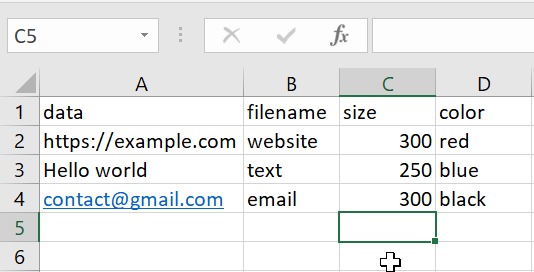
data column header in row 1.
Each row below becomes one QR code. Optional columns: filename,
color, size.
Step 2: Upload Your Excel or CSV File to the QR Code Generator
Drag and drop or browse — .csv, .xlsx, .xls accepted
In the second step, you are required to upload or drag and drop your file, which will take just a few seconds. Go to the bulk QR generator. You will see a "Choose File" option; select it and upload your file directly from your PC.
The generator accepts .CSV, .XLSX, and .XLS formats. Files up to 10MB are supported, which covers spreadsheets with tens of thousands of rows.
Once selected, the upload zone will confirm the filename and show you an estimated count of how many codes will be generated — so you can verify before clicking generate.
data exactly
(lowercase, no spaces). The system will reject files where the first header is missing or named differently.
Drag & drop your file here
or click to browse
Supports .CSV · .XLSX · .XLS
qr_template.xlsx
4 codes will be generated
The generator confirms your file and row count before you generate.
Step 3: Customize Your QR Codes — Color, Size & Format
Set global size, color, and format — or control each QR per row
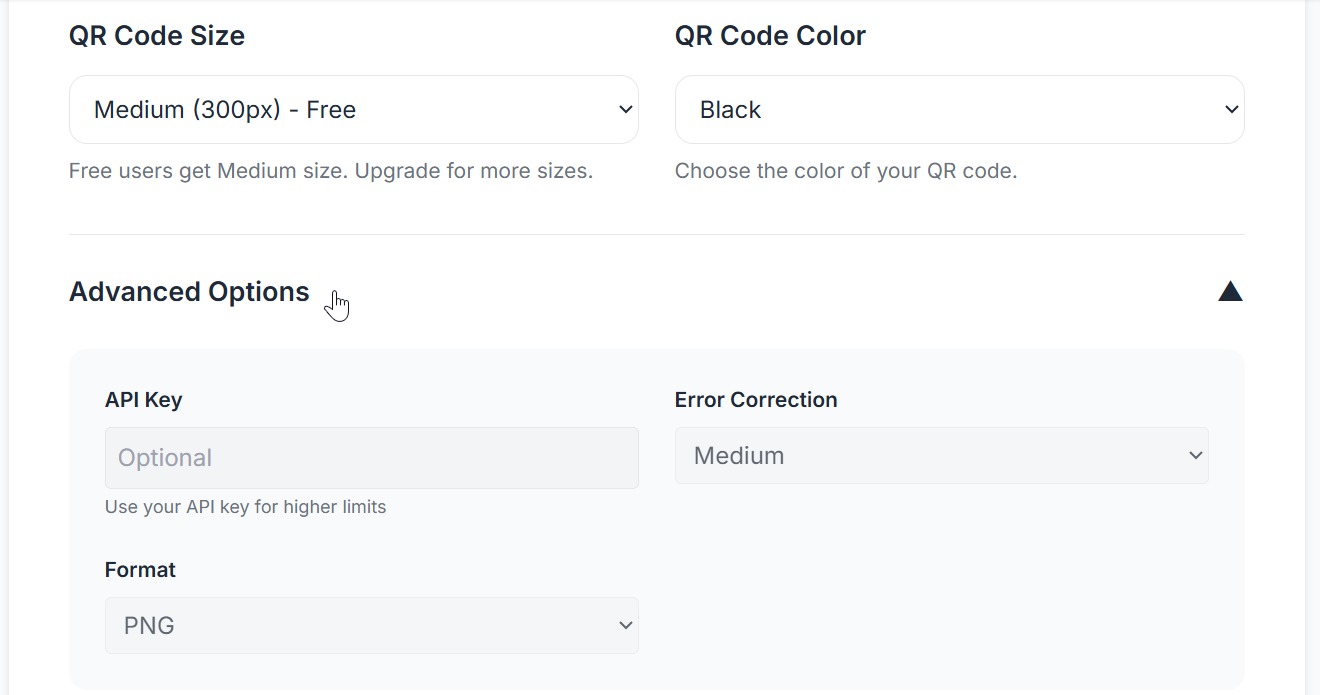
You can customize and select the best match according to your needs before generating. These settings apply to all codes in your batch, but you can also customize individual codes using columns in your spreadsheet. The standard sizes of our tool are 200px for small use, 300px for standard, or 400–500px for print.
Size
Choose 200px (small digital), 300px (standard), 400px or 500px (print).
Override per row using the size column.
Color
Pick any color using the hex color picker or enter a hex code directly
(e.g. #0057ff).
Override per row using the color column.
Advanced Options (Pro / Business)
Error correction level (L/M/Q/H), output format (PNG or SVG), for higher batch limits and priority processing. Upgrade to unlock →
Output Size (px)
Code Color (hex)
Advanced Options 🔒 Pro
Step 4: Generate QR Codes in Seconds
The server reads every row and creates one code per entry
Now, you will see the "Generate QR Codes" button; click it to start generating. Our tool will start processing your sheet, row by row, and automatically generate a QR code for each entry using your selected settings. Most batches are completed within seconds.
Processing 1,000 codes takes approximately 3–8 seconds, depending on server load. 10,000 codes typically complete in under 60 seconds.
Every generated code follows the ISO/IEC 18004 standard — ensuring universal scan compatibility across all smartphone cameras and QR readers, worldwide.
Generating your batch… please wait
Step 5: Download Your QR Codes as a ZIP File
All codes packaged in one organized ZIP — ready immediately
Once your QR codes are generated, a "Download ZIP" button will appear. Click it to download all the codes in a single ZIP file. Your ZIP file keeps everything organized, making it easy to use your codes for printing, sharing, or digital use.
Each QR code is saved as a separate file, named automatically (or based on your filename column, if provided). Files are exported as PNG by default, while the SVG format is available on Pro and Business plans for high-quality printing.
Successfully generated 4 codes
Your ZIP file is ready to download
⬇ Download ZIP Filebulk_qr_batch.zip · Available for 1 hour
ZIP contents:

How to Set Up Your Excel File for QR Code Generation — Column Reference
All supported column names and what they control
Use our guide to set up your spreadsheet correctly before generating QR codes. Each column controls a specific setting, allowing you to customize multiple QR codes in a single upload.
| Column Name | Accepted Aliases | Required? | Example Value | What it does |
|---|---|---|---|---|
data
|
url, content, value | Required | https://example.com | The content each QR code encodes. Any data type. |
filename
|
name, file | Optional | product_001 | Output filename (no extension). Auto-numbered if blank. |
color
|
color, fg, foreground | Optional | #0057ff | Hex color for QR modules. Defaults to black (#000000). |
size
|
px, pixels | Optional | 300 | Output size in pixels (100–1000). Defaults to global setting. |
✅ Valid file example
❌ Common mistakes
URL not data# prefixHow to Create QR Codes Without a Spreadsheet (Manual Entry)
Paste or type data directly — each line generates one scannable code
If you only need a few QR codes, you can skip the file upload and enter your data manually. Simply type or paste your content into the input box, one line for each QR code.
Each line you enter generates one unique QR code. You can add URLs, text, email addresses, phone numbers, or any other data. This option is perfect for quick use, small batches, or when you don't have a spreadsheet ready.
Supported data types:
4 codes will be generated
Each line = one unique code
QR Code Error Correction Levels — Which One Should You Use?
How much damage a code can sustain and still scan
Sometimes, when using your products, you may face damage to QR codes. Here, a question arises: how much damage can a code sustain and still scan? Our tool's error-correction feature steps in and addresses this problem by controlling how much damage a QR code can withstand and still be scanned. There are different levels of error correction in our tool, customizable to best suit your needs. Higher levels make the QR code more durable but slightly denser.
Low (7% recovery)
Best for digital screens, apps, and clean print environments where the code won't be touched or worn.
Medium (15% recovery)
Good default for most print materials — flyers, menus, posters. Balanced density and resilience.
Quartile (25% recovery)
Recommended for product labels and packaging that may get scuffed, wet, or partially covered.
High (30% recovery)
Best for industrial use — warehouse labels, outdoor signage, or codes that may be heavily worn.
How to Generate QR Codes — Frequently Asked Questions
Common questions answered
Still have questions? Visit our Help Center →
Summary — How to Generate QR Codes from Excel or CSV
Now, you are well aware of how to generate QR codes from Excel or CSV in just a few simple steps, from preparing your file to downloading all your codes in a single ZIP. The process is straightforward: upload your file, customize your QR code settings, generate codes for each row, and download everything instantly. This method allows you to create multiple QR codes quickly for URLs, text, locations, payments, emails, and more, making it suitable for both personal and professional use.
The same QR code generator supports all major data types: website URLs, plain text, Google Maps locations, UPI payment links, email addresses, phone numbers, and more. You can mix different data types across rows in the same file. Export from Google Sheets as CSV and upload directly.
Create Free Account
Save history & unlock features
All Features
Colors, SVG, API & more
Tutorials & Blog
Guides, tips & use cases
Last updated: October 2026 · System Status · About Us
Found this guide useful? Share it with your team.
Ready to Generate QR Codes from Your Spreadsheet?
Upload your Excel or CSV file, set your preferences, and download thousands of print-ready codes in seconds.
No credit card required · Free plan available · No installation needed