How to Create QR Codes & Barcodes from Excel or CSV
This step-by-step guide shows you how to generate QR codes from an Excel spreadsheet or CSV file in under 60 seconds. You'll also learn how to create barcodes in Excel, use barcode fonts, and customize every code with individual colors and sizes — no software installation or technical skills required.
Step 1: Prepare Your Excel or CSV File for QR Code Generation
Format your spreadsheet correctly — takes 2 minutes
Create a CSV (.csv) or Excel (.xlsx / .xls) file — or export one from
Google Sheets — where
each row represents one scannable code.
The only required column is data
— every other column is optional and gives you per-row control.
The data column
can contain any value you want encoded: website URLs, plain text,
product IDs, email addresses, phone numbers, or location coordinates.
You can even mix different data types across rows in the same file.
This is how the QR code generator handles datasets of any size —
from a handful of codes to tens of thousands.
Required column:
data
— the value each code encodes
Optional columns:
filename — name for each output filecolor — hex value e.g. #0057ffsize — pixel size e.g. 300
Each row = one code. Only the data column is required.
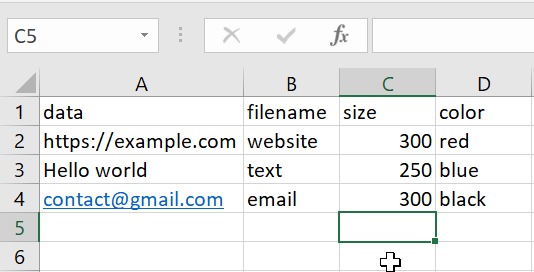
data column header in row 1.
Each row below becomes one QR code. Optional columns: filename,
color, size.
Step 2: Upload Your Excel or CSV File to the QR Code Generator
Drag and drop or browse — .csv, .xlsx, .xls accepted
Navigate to our free QR code generator and use the upload zone at the top of the Bulk QR tab. You can either drag and drop your file directly into the zone, or click it to browse your computer.
The generator accepts .CSV, .XLSX, and .XLS formats. Files up to 10MB are supported, which covers spreadsheets with tens of thousands of rows.
Once selected, the upload zone will confirm the filename and show you an estimated count of how many codes will be generated — so you can verify before clicking generate.
data exactly
(lowercase, no spaces). The system will reject files where the first header
is missing or named differently.
Drag & drop your file here
or click to browse
Supports .CSV · .XLSX · .XLS
qr_template.xlsx
4 codes will be generated
The generator confirms your file and row count before you generate.
Step 3: Customize Your QR Codes — Color, Size & Format
Set global size, color, and format — or control each QR per row
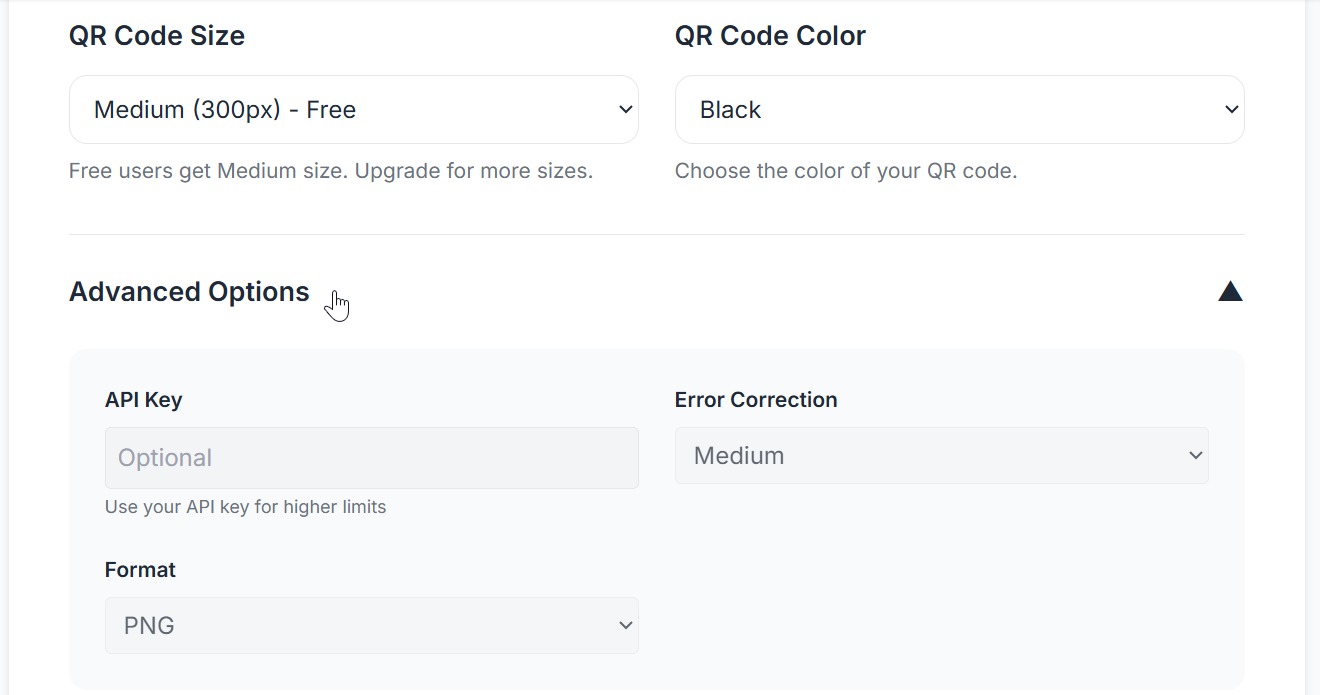
Before generating, set your global preferences for each code in the batch. These apply to every code in your batch unless overridden by a per-row column value in your spreadsheet.
Size
Choose 200px (small digital), 300px (standard), 400px or 500px (print).
Override per row using the size column.
Color
Pick any color using the hex color picker or enter a hex code directly
(e.g. #0057ff).
Override per row using the color column.
Advanced Options (Pro / Business)
Error correction level (L/M/Q/H), output format (PNG or SVG), and API key for higher rate limits. Upgrade to unlock →
Output Size (px)
Code Color (hex)
Advanced Options 🔒 Pro
Step 4: Generate QR Codes in Seconds
The server reads every row and creates one code per entry
Click the Generate QR Codes button. The system reads every row in your uploaded file (or manual input), encodes the data into a QR matrix, applies your chosen color and size, and saves each code as a PNG file.
A progress bar shows live status across four stages: reading your file, processing rows, generating QR images, and packaging the ZIP. Most batches complete in under 10 seconds.
Every generated code follows the ISO/IEC 18004 standard — ensuring universal scan compatibility across all smartphone cameras and QR readers, worldwide.
Generating your batch… please wait
Step 5: Download Your QR Codes as a ZIP File
All codes packaged in one organized ZIP — ready immediately
When generation completes, a
Download ZIP button appears.
Click it to download a single ZIP archive containing every generated code —
each file named according to your
filename
column (or auto-numbered if you didn't include one).
The ZIP also includes a README.txt
with your generation timestamp and count for your records.
Codes are exported as PNG on all plans. SVG (infinitely scalable, ideal for print) is available on Pro and Business plans.
Successfully generated 4 codes
Your ZIP file is ready to download
⬇ Download ZIP Filebulk_qr_2025-01-15_batch.zip · Available for 1 hour
ZIP contents:

How to Make QR Codes Without a Spreadsheet — Manual Entry Option
Paste or type data directly — each line generates one scannable code
If you only need a few codes, skip the file upload entirely. Use the manual data input textarea in the generator and type or paste your content directly — one entry per line.
Every line you enter generates one unique code. You can enter URLs, text, email addresses, phone numbers — any data type. The generator counts your lines in real time and shows how many codes will be created before you generate.
Manual entry is ideal for quick tests, small batches, or when you don't have a spreadsheet ready.
Supported data types:
4 codes will be generated
Each line = one unique code
How to Set Up Your Excel File for QR Code Generation — Column Reference
All supported column names and what they control
Use this reference when setting up your spreadsheet to create QR codes from Excel or CSV. Each column name below controls a specific property of the generated code — letting you build multiple codes with unique settings in a single upload.
| Column Name | Accepted Aliases | Required? | Example Value | What it does |
|---|---|---|---|---|
data
|
url, content, value | Required | https://example.com | The content each QR code encodes. Any data type. |
filename
|
name, file | Optional | product_001 | Output filename (no extension). Auto-numbered if blank. |
color
|
colour, fg, foreground | Optional | #0057ff | Hex color for QR modules. Defaults to black (#000000). |
size
|
px, pixels | Optional | 300 | Output size in pixels (100–1000). Defaults to global setting. |
✅ Valid file example
❌ Common mistakes
URL not data# prefixHow to Generate QR Codes for URLs, Text, WiFi, vCard, UPI & More
What you can encode in each scannable code
Website URL
https://example.com/page
Most common. Opens in browser on scan.
Email Address
mailto:hello@example.com
Opens email client pre-addressed.
Phone Number
tel:+923001234567
Prompts a call on scan.
SMS Message
sms:+923001234567?body=Hello
Opens SMS app with pre-filled message.
Location / GPS
geo:31.5204,74.3587
Opens Maps app to exact coordinates.
UPI Payment
upi://pay?pa=name@upi&pn=Name
Opens payment app for instant transfer.
Plain Text
Serial No: SN-00123456
Encodes any raw text string.
vCard Contact
BEGIN:VCARD\nFN:John Smith\n...
Saves contact to phone on scan.
QR Code Error Correction Levels — Which One Should You Use?
How much damage a code can sustain and still scan
Error correction determines how much of a generated code can be damaged, covered, or obscured while remaining scannable. Higher correction = more redundant data = denser code. Choose based on where your printed code will be used.
Low (7% recovery)
Best for digital screens, apps, and clean print environments where the code won't be touched or worn.
Medium (15% recovery)
Good default for most print materials — flyers, menus, posters. Balanced density and resilience.
Quartile (25% recovery)
Recommended for product labels and packaging that may get scuffed, wet, or partially covered.
High (30% recovery)
Best for industrial use — warehouse labels, outdoor signage, or codes that may be heavily worn.
How to Create QR Codes in Excel — Frequently Asked Questions
How it works — common questions answered
Still have questions? Visit our QR Code Help Center →
How to Create Barcodes in Excel — Barcode Fonts, Formulas & Generators
In addition to QR codes, many businesses need to generate standard linear barcodes from Excel spreadsheets — for product labeling, inventory tracking, shipping labels, and retail packaging. There are three main approaches to creating barcodes in Excel: using a barcode font, using an Excel barcode formula, or using an online barcode generator that accepts Excel and CSV uploads.
Method 1: Install a Barcode Font for Excel
The most common method is to download and install a barcode font for Excel — such as the free Code 39 (also called "3 of 9") barcode font or a Code 128 barcode font. Once installed, you can type a product code or serial number into a cell and apply the barcode font to render it as a scannable barcode directly in your spreadsheet.
To use a Code 39 barcode font for Excel: download the free "Libre Barcode 39" font from Google Fonts or a Code 39 barcode font free download site, install it on your system, then select your data cells in Excel and change the font to "Libre Barcode 39." Each cell value instantly renders as a scannable barcode. This method works for simple inventory labels and product identification but doesn't support all barcode types.
Method 2: Use an Excel Barcode Formula
For more control, you can use an Excel barcode formula to encode data with start/stop
characters required by barcode standards. For Code 128 barcodes, this involves
prepending and appending control characters (e.g., Ñ and Ò for Code 128B) and
calculating a checksum digit. For simple Code 39 barcodes, wrapping the value with
asterisks (=CONCATENATE("*",A1,"*"))
is sufficient when paired with a Code 39 font.
This approach is useful when you need to generate barcodes in Excel without installing any external software — the formula handles encoding, and the font handles rendering. However, it requires manual setup per barcode type and doesn't scale well for thousands of codes.
Method 3: Upload Your Excel File to an Online Barcode Generator
The fastest method for large volumes is to use an online
barcode generator
that accepts Excel and CSV uploads. Prepare your spreadsheet with a
data column
containing your product codes, serial numbers, or text values, then upload the file.
The generator creates a barcode image (PNG or SVG) for every row and packages them into
a downloadable ZIP file — the same workflow as generating QR codes from Excel.
This method supports all major barcode formats: Code 128 (alphanumeric, most versatile), Code 39 (uppercase letters and digits), EAN-13 (retail products), UPC-A (North American retail), and EAN-8 (small packaging). No barcode font installation or formula setup is needed — the generator handles encoding, rendering, and export automatically.
Which method should you choose?
• Barcode font: Best for small batches where you need barcodes visible inside your Excel file.
• Excel formula: Best when you want to avoid installing anything but need Code 39 barcodes.
• Online generator: Best for large volumes (100+ barcodes), multiple barcode types, or when you need high-resolution PNG/SVG output files for printing stickers, labels, or packaging.
Summary — How to Make QR Codes & Barcodes from Excel in 5 Steps
This guide covers how to create QR codes from an Excel spreadsheet or CSV file using
our free online generator. The process takes five steps: prepare your file with a
data column (plus
optional filename, color, and size columns), upload the file to the generator, customize
your output settings (size, color, error correction, PNG or SVG format), click generate,
and download your ZIP file containing every QR code.
The same workflow applies to generating barcodes from Excel. Use the barcode generator tab to create Code 128, Code 39, EAN-13, and UPC barcodes from your spreadsheet data. Alternatively, install a barcode font for Excel (such as Libre Barcode 39 or a Code 128 font) to render barcodes directly inside your spreadsheet cells.
The generator supports all major QR code data types: website URLs, plain text, Google Maps locations, WiFi network credentials, vCard digital business cards, UPI payment links, email addresses, phone numbers, and PDF document links. You can mix different data types across rows in the same file. Export from Google Sheets as CSV and upload directly.
Use cases include product packaging and inventory labels, event ticket QR codes, restaurant menu table codes, print marketing campaigns, warehouse and stock management labels, business card QR codes, WiFi sharing codes for offices and hotels, and UPI payment collection for shops and freelancers.
Create Free Account
Save history & unlock features
All Features
Colors, SVG, API & more
Tutorials & Blog
Guides, tips & use cases
Last updated: April 2026 · System Status · About Us
Found this guide useful? Share it with your team.
Ready to Create QR Codes from Your Spreadsheet?
Upload your Excel or CSV file, set your preferences, and download thousands of print-ready codes in seconds.
No credit card required · Free plan available · No installation needed